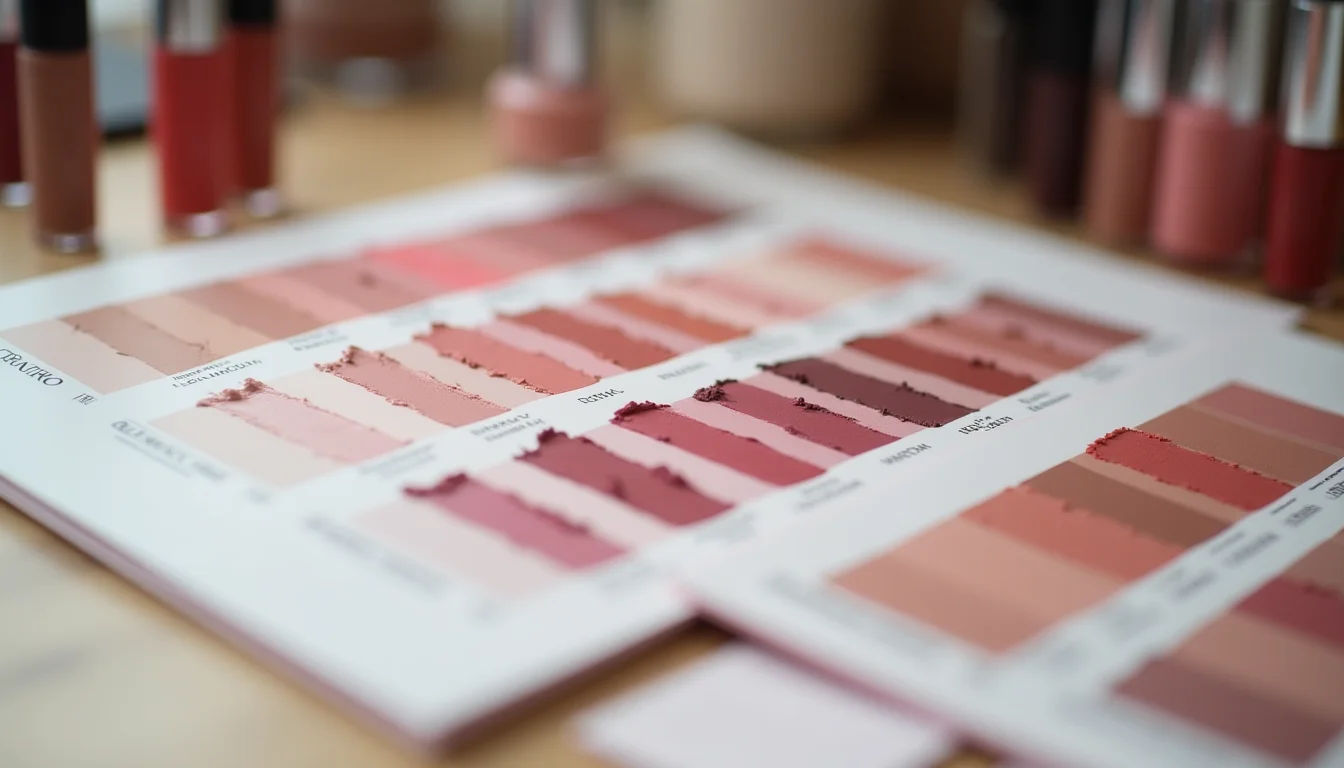


A makeup range with 30 shades needs 30 separate makeup swatch images for Shopify product pages, one per shade variant. Each swatch becomes the product preview for that shade. When the handover arrives as a combined swatch sheet, or 30 files named "swatch-01" through "swatch-30" with no shade names, the upload team has to map every one by hand before the upload can start.
Key takeaways
- Each Shopify product variant can have one assigned image, so one swatch image per shade is the rule (Shopify Help Center, as of October 2026)
- Shopify displays the assigned variant image as the product preview when a shopper selects a shade
- Swatch image file names should match the exact shade name as it will appear in the Shopify option value
- Supported formats are JPEG, PNG, WebP, HEIC, and GIF; the maximum file size is 20 MB per image (Shopify Help Center, as of October 2026)
- Lifestyle and packaging shots go into the product gallery alongside the swatches; only the swatch is assigned to the specific variant
How makeup swatch images work in Shopify
In Shopify, product images sit in a gallery attached to the product. Any image in that gallery can be assigned to a specific variant. Each variant holds one assigned image.
When a shopper picks a shade from a color or shade option, Shopify displays that variant's assigned image as the product preview. The rest of the gallery images are available to scroll through. The assigned swatch is the one that changes, shade by shade.
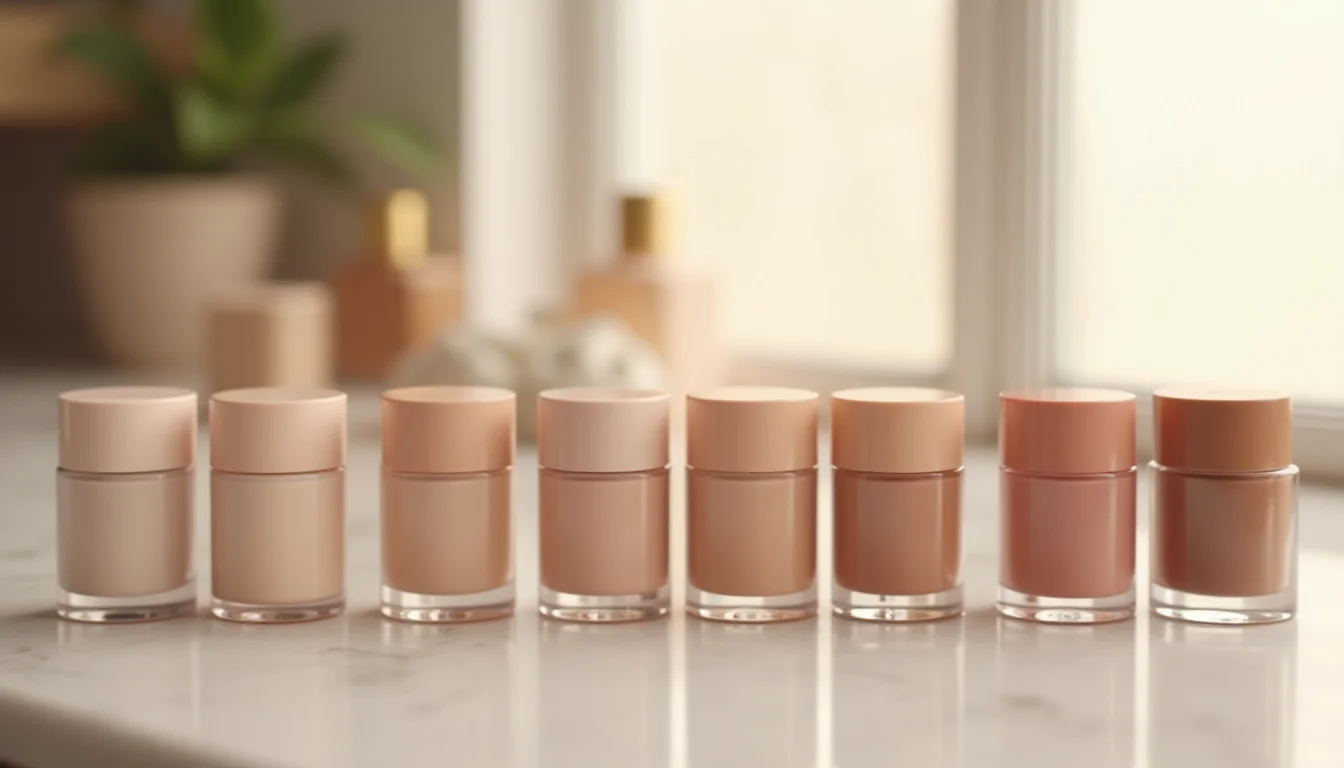
For a 40-shade lipstick, that means 40 separate images to assign: one per variant. The number of shades equals the number of swatch images the upload team needs to receive.
One thing to note: showing a completely different set of gallery images when a shade option changes, rather than only the assigned preview image, requires the Combined Listings app. That app is available only on Shopify Plus and Enterprise plans. For stores on standard plans, the swatch-to-variant assignment covers the essential job: the correct shade preview appears when a shopper makes their selection.
Our product image optimization service covers image preparation as part of an upload job, including variant image assignment for multi-shade cosmetics ranges. For a broader look at how image preparation fits into a full upload, the Shopify product image optimization service guide covers the full workflow.
What an upload team assigns per shade
The assignment task for a multi-shade product follows three steps.
First, each swatch image gets added to the product's media gallery. Second, the team assigns the correct swatch to the matching variant using the image icon next to each variant in the Shopify admin. Third, the remaining gallery images: packaging shots, model shots, texture close-ups stay in the gallery and appear to all shoppers regardless of which shade they choose.
This is why the handover needs to be one swatch image per shade, clearly tied to its shade name. If the team has to guess which swatch belongs to which shade, or manually match filenames to a separate shade list, the job takes longer than it needs to.
| Image type | What the upload team does with it |
|---|---|
| Swatch image (per shade) | Assigns it to the matching shade variant; becomes the product preview for that shade |
| Packaging shot | Adds to the product gallery; shared across all shade variants |
| Model or lifestyle shot | Adds to the product gallery; shared, or added per variant if shade-specific |
| Texture or formula close-up | Adds to the gallery; can be shade-specific if the texture differs by shade |
File naming and the variant option value
The most common problem with makeup swatch image handovers is that the image file names do not match the shade names in the product data.
When an upload team works from a CSV and a folder of swatch images, the only reliable way to map shades to their correct swatches is a consistent naming convention. There is no automatic matching in Shopify's admin: the team has to open each variant and choose the right image from the gallery. If the gallery has 30 swatches named "image1.jpg" through "image30.jpg" and the CSV has 30 shade names in a different order, every assignment requires a visual check.
A clear file naming approach:
- Use the shade name as the file name, or start the file name with it
- Keep the naming consistent with the "Color" or "Shade" option in the CSV
- Replace spaces with hyphens if needed, but keep the shade names recognizable
For example, if the CSV option value is "Deep Plum," the swatch file name "deep-plum.jpg" is immediately mappable. A file named "shade-22.jpg" is not, unless the team also has a numbered shade list to cross-reference.
A brief that says "name each swatch image after its shade name, using the exact same text as the shade option value in the CSV" saves the upload team from the manual matching step entirely. That instruction alone reduces the time spent on a large makeup range significantly. The same naming principle applies across any multi-image handover: the product image consistency standards guide covers file naming conventions for Shopify stores more broadly.

Makeup swatch images for Shopify product pages: formats to use
Shopify accepts JPEG, PNG, WebP, HEIC, and GIF files for product images (as of October 2026). The maximum file size is 20 MB per image, and the maximum resolution is 25 megapixels. For swatch images, JPEG works for solid or gradient shades. PNG works when the swatch has a transparent background, for example a smear or a drop against a white background.
Several handover formats regularly cause rework:
Swatch sheets. A single image with all shades arranged in a grid is not usable as a variant image. Each shade needs its own individual file.
Generic numbering. File names like "swatch-01.jpg" or "color01.png" are not self-explanatory. The upload team needs a separate numbered list to make the connections, and that list is rarely provided.
Shade names that differ from the CSV. If the swatch file is named "nude-sand.jpg" but the CSV option value is "Nude Sand Matte," the mismatch has to be resolved manually for each shade.
Missing shades. If there are 40 swatches but only 38 shade options, the team needs to know which two images go in the gallery without a variant assignment.
Very low resolution. Shopify does not set a minimum resolution, but a 60 × 60 pixel swatch rarely represents a shade accurately on a product page, particularly for finishes like shimmer, metallic, or duochrome.
A makeup swatch image brief for your upload team
If you're preparing a swatch image handover, cover these points before sending the files:
- The total shade count and the exact shade names, matching the CSV option values
- One image per shade, in its own file, no combined swatch sheets
- The file naming convention: shade name in the file name, matching the option value text
- Whether any shades share a colorway or family grouping, for gallery organization
- Whether any shades need shade-specific gallery images beyond the swatch itself, for example a formula that comes in matte and shimmer versions with different texture appearances
- The image format used: JPEG, PNG, or WebP
Passing this information upfront, together with clearly named files, means the upload team can complete the variant image assignments in one pass rather than working back and forth between the files and the shade list.
For beauty and cosmetics ranges with complex data, our beauty and cosmetics product upload service page covers the full scope of what we handle, from shade variants to ingredient data. Similar handover preparation applies to other beauty product types: the skincare gift sets handover guide covers the image and data decisions for multi-component products in the same category. More articles on makeup product uploads are in the makeup upload team guides collection.
Frequently asked questions
Does the swatch image need to look like a product swatch, or can it be a flat color block?
Either works in Shopify's variant system, but a flat color block that does not represent the formula's finish accurately can mislead shoppers. For most makeup ranges, a swatch of the product on a neutral surface reads more accurately than a plain color block, especially for shades with shimmer, glitter, or metallic finishes. The goal is for the product preview to show what the shopper is actually choosing.
A range has 45 shades. How many swatch images does the upload team need?
45, one per shade. Each shade variant in Shopify gets one assigned image. The upload team adds all 45 to the product gallery and assigns each to its matching variant. A 40-shade range needs 40 swatches; a 10-shade range needs 10. The count matches the number of option values in the shade or color option.
What file format is best for makeup swatch images in Shopify?
JPEG is the most common choice for solid or gradient swatch images. PNG works better when the swatch has a transparent background, such as a product smear or a dot swatch against a white background. WebP is also accepted and gives slightly smaller file sizes at similar quality. Shopify accepts JPEG, PNG, WebP, HEIC, and GIF as of October 2026.
Can we skip the per-shade swatch and put all images in the gallery?
Yes, but without a variant image assigned, Shopify shows the same first gallery image regardless of which shade a shopper selects. For a multi-shade product, that means the product preview stays static. Most shoppers want to see the specific shade they are choosing, so skipping variant image assignment affects the browsing experience.
What if a shade is discontinued but still in the supplier file?
The upload team enters the variant and can mark it as out of stock. The swatch image still needs to be in the handover so the variant assignment is complete. Discuss with your team whether discontinued shades should display the swatch in the gallery or whether the variant should be removed from the product entirely. Removing it means the shade history is gone from the store; marking it out of stock leaves the variant visible but unavailable.