

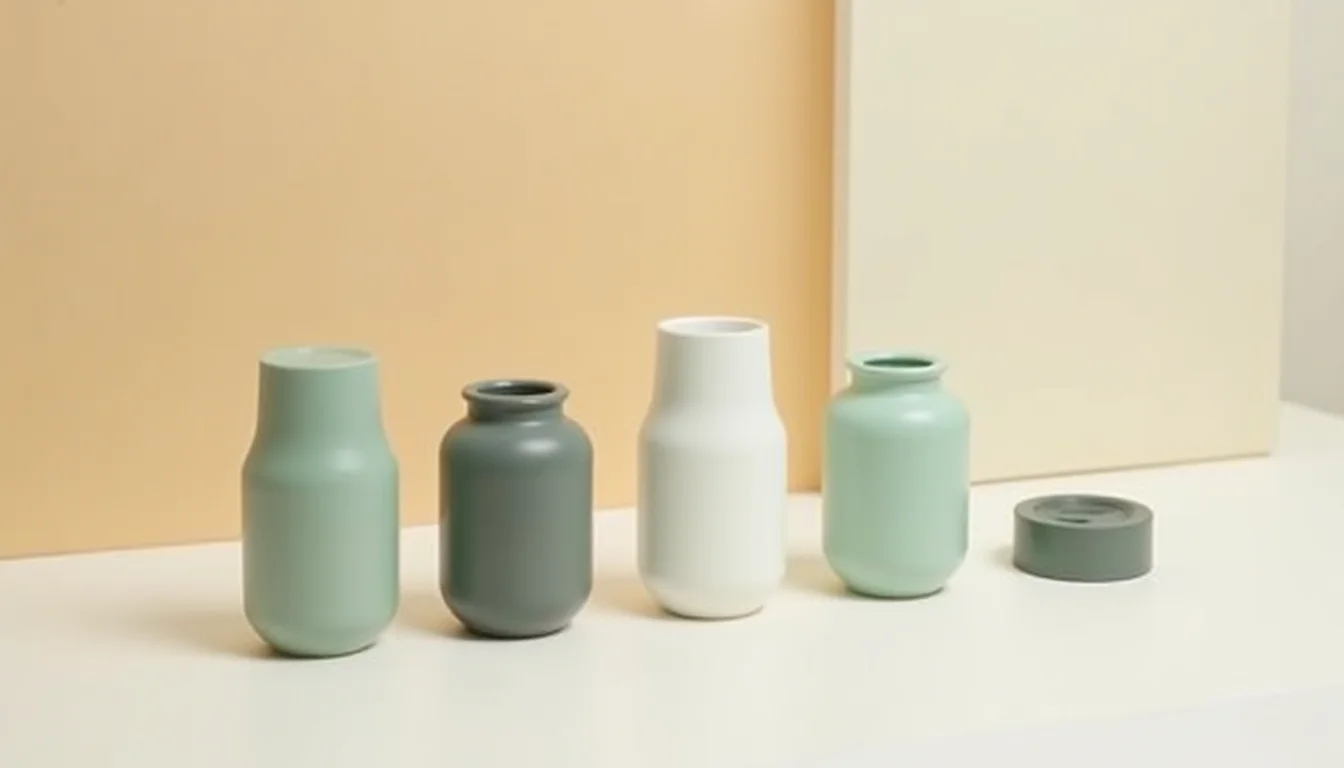
Supplier images often arrive with unhelpful filenames, varying sizes, and no alt text. Uploading them to Shopify as-is means slow product pages, customers who cannot tell which image matches which variant, and a catalog invisible to screen readers and image search. A Shopify image optimization service prepares those files before anything reaches your store.
Here is what the service actually involves, and what is usually overlooked when merchants handle it themselves.
What the team standardizes
The core of an image job is consistency. A product catalog with images at a dozen different sizes and aspect ratios looks unfinished, and Shopify does not automatically crop or resize images after upload: what you upload is what customers see.
The team works to a set of standards agreed with you before the job starts. Those usually cover:
Size and crop. A standard pixel dimension (for example, 2000 x 2000 pixels for a square catalog, or 1600 x 2000 for a portrait-format fashion store). Supplier images are resized or cropped to that target, keeping the product centered and the background consistent.
File format. Shopify accepts JPEG, PNG, WebP, HEIC, and GIF for product images (as of October 2026). WebP produces smaller files than JPEG at equivalent visual quality, which helps product page load times without visible loss. The team usually converts to WebP unless you prefer JPEG for compatibility with other systems.
Compression. Shopify's upload limit is 20 MB per file, but a 20 MB product image will load slowly on a mobile connection. The team compresses files to a practical size (often under 200 KB for a standard product shot) without visible degradation at normal viewing sizes.
File names. Shopify stores the filename you upload. A file named ceramic-mug-speckled-blue-1.webp is retrievable, transferable, and readable by image-search crawlers. A file named IMG_0001.jpg is not. Renaming is applied consistently: product name, variant, shot number.
What alt text involves at the variant level
Alt text is set per image in Shopify's product editor. It appears in two places: screen readers read it to users who cannot see the image, and image search engines use it as a signal for what the image shows.
The important detail is that alt text needs to describe the specific variant shown, not the generic product title. If you have a ceramic mug in three colorways (speckled blue, matte black, and raw clay), then the speckled blue image needs alt text that names the color and angle explicitly: "Ceramic mug, speckled blue, front view." Generic alt text that repeats the product title across every image treats five different colorway shots as if they were identical.
This is harder to retrofit than it sounds. Alt text can only be written accurately if the team knows which variant each image shows. If you revisit a 400-product catalog to add or correct alt text after the upload, you are re-opening every product and tracing which image goes with which option. The correct time is during the upload: when the variant mapping is already in front of you.
What the team needs from you
Before the job starts, the team will ask for:
- The image folder. Studio shots, supplier images, or a mix: the raw files before any editing. The team works from originals, not from compressed copies.
- A product list. A spreadsheet or document that shows which images correspond to which products. If the filenames do not make this clear, a mapping column is enough: product title, variant name, image file.
- Your variant structure. If your products have color options, size options, or other variants, the team needs the exact names you plan to use in Shopify. Alt text and filenames are written to match the variant names in the store, so they need to agree before the job begins.
- Any style preferences. Square versus portrait format, white versus gray background, preferred image order on the product page, whether lifestyle shots go before or after the clean product shots.
How the images are loaded into Shopify
Once the files are prepared and named, the team uploads them to each product in Shopify and assigns each image to its variant. Shopify allows up to 250 media items per product and lets you assign one featured image per variant: the image that shows when a customer selects that option.
The assignment step is the part that separates an image optimization job from uploading a folder of files. Uploading images to a product without assigning them to variants means customers see whatever Shopify chooses as the default when they select an option. Assigning each image to its variant means the product page responds correctly: select "speckled blue" and the speckled blue image appears.
The team works through this product by product, using the variant mapping from your product list. When the catalog is large, this is the most time-consuming part of the job. For a 200-product store where each product has three colorways, that is 600 individual assignments. It is also the part most often skipped when merchants upload images themselves.
As part of an upload or as a standalone job
Image optimization runs either alongside a new product upload or as a separate job for an existing catalog.
When it runs with an upload, the team builds the variant mapping once and uses it for both the product data entry and the image work. There is no duplication: product titles, variant names, and image assignments are all set in the same pass. This is usually the most efficient approach for a new store setup or a new season range.
When it runs on an existing catalog (products are already in the store but images are inconsistent, missing alt text, or too large), the team works through the catalog product by product to bring images up to a consistent standard.
For more on what the full image service covers, see the Shopify product image optimization service page.
What you end up with
After the job, your catalog will have:
- Images at a consistent size, format, and crop across every product
- File names that describe what the image shows
- Alt text on every image that names the product, variant, and angle
- Each image assigned to its correct variant in Shopify, so the product page responds when a customer makes a selection
The images are ready to sell against. A customer can select a color option and see the right image, a screen reader can describe what the image shows, and image search can index the file correctly.
If you are also preparing product data for an upload (titles, descriptions, variants, pricing), it usually makes sense to handle the image work in the same job. The Shopify product data entry service covers the full product record alongside images. For the broader reasoning on why merchants outsource this kind of catalog work, that article covers the time-cost arithmetic in more detail.