


Most footwear products arrive with a single description column that blends construction, materials, and marketing copy into one block of text. The footwear material fields for Shopify uploads are not one field: they are at least four distinct components that an upload team separates, standardizes, and enters before a listing goes live.
Key takeaways
- Footwear material data covers four components: upper, lining, outsole, and insole, and each needs its own value in the product listing
- Shopify has no dedicated built-in material fields for footwear, so material data goes into the product description as a formatted specification list and, for filtering, into product tags
- Supplier files almost never use a brand's preferred material terminology, and an upload team maps supplier values to agreed brand terms before entering anything
- A short materials brief, sent before the job starts, defines the preferred terms for each component and prevents revision cycles
- Consistent tag formatting ("upper:leather", not "leather upper" or "leather-upper") is what makes smart collection conditions and filtered navigation work correctly
Footwear material fields for Shopify uploads
For a standard footwear product, the material data an upload team enters covers four components. Each describes a distinct part of the shoe's construction, and each can vary by colorway or material run within the same style.
| Component | What it describes | Common values (examples) | Notes for upload teams |
|---|---|---|---|
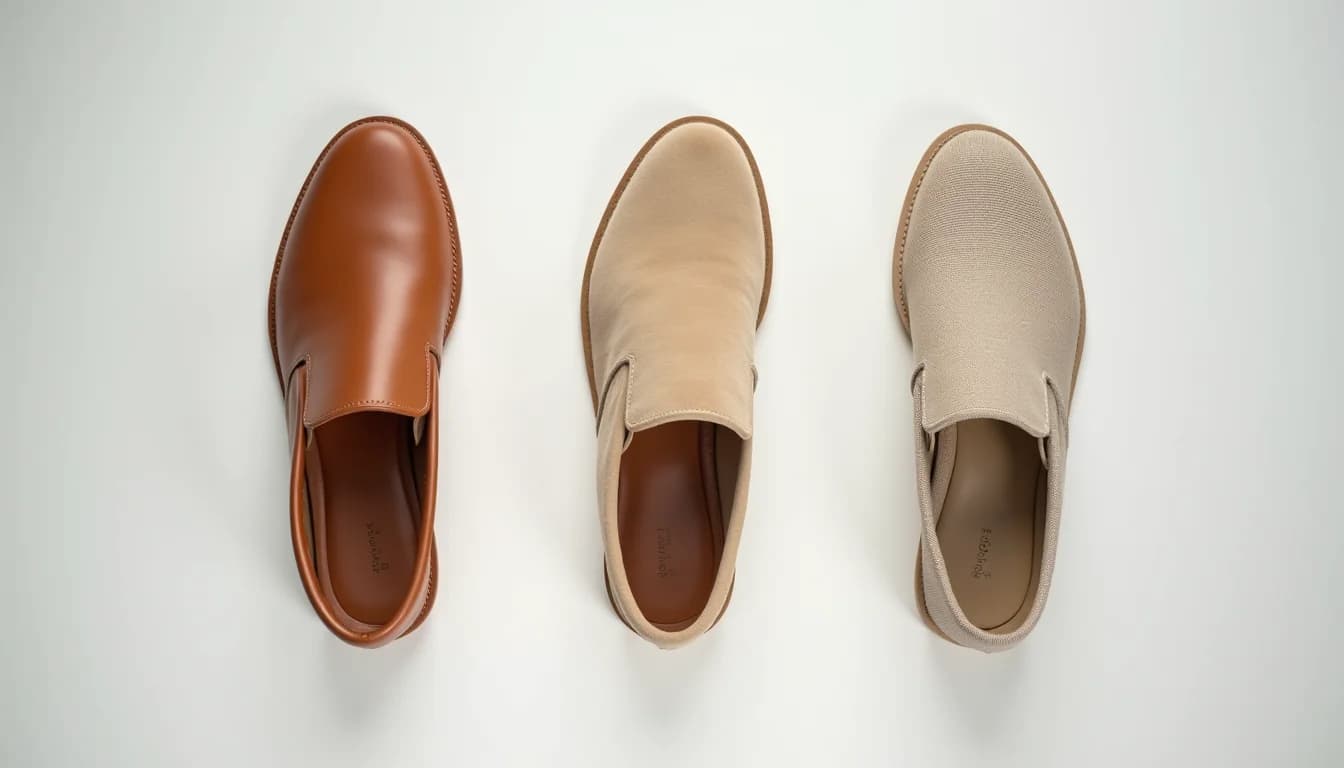
| Upper | The outer material of the shoe body | Full-grain leather, suede, canvas, synthetic, mesh, nubuck | The most visible material; drives filtering more than any other component. Exact terminology must match the brand's preferred list. |
| Lining | The interior surface the foot touches | Leather, textile, synthetic, moisture-wicking fabric | Often absent from supplier files entirely; teams ask for it explicitly in the intake brief. |
| Outsole | The bottom surface that contacts the ground | Rubber, crepe rubber, leather, EVA, TPR | Shoppers use this for traction and durability checks. For athletic styles, the outsole type is often the deciding field. |
| Insole | The removable or fixed inner foot bed | Memory foam, cork, leather, cushioned EVA | Frequently missing from basic supplier sheets. Include if the brand promotes comfort features, because it is one of the first things customer service teams are asked about. |
Some footwear categories add a fifth component. Boots often include a shaft lining separate from the foot lining. Sandals may include a footbed material distinct from the outsole. Athletic footwear commonly lists a midsole material, often EVA foam or a brand-specific cushioning compound. These additional components follow the same entry logic: one agreed value per component, per style.
Why supplier files rarely deliver clean material data
Supplier product sheets are built to describe a product to a buyer, not to populate a store. A typical footwear supplier file puts material information in a "Description" or "Product Details" column as a single paragraph: "Full grain leather upper with rubber sole and cushioned insole, leather lining."
That sentence contains all four components. It also contains none of the consistency an upload team can use directly, because:
- Terminology varies across suppliers. One supplier writes "full grain leather," another writes "genuine leather," a third writes "cowhide." All three may mean different things, and a brand needs one term across all three.
- Format varies within one supplier's own file. The same supplier may list "leather upper" for one style and "upper: leather" for another, depending on who filled in the column.
- Components go unlisted. Lining material is the most commonly omitted component. If the supplier file doesn't mention it, an upload team has to ask before entering anything, because guessing a lining material introduces a claim that may not be accurate.
The resolution is a materials brief that the merchant provides before the job starts. It lists the approved terms for each component, maps common supplier synonyms to the brand's preferred value, and flags any components that must be confirmed rather than inferred.
For example, a brief might say: "Upper: use 'Full-grain leather', 'Suede', or 'Canvas' only. If the supplier says 'genuine leather', flag it: do not enter it as full-grain. Lining: must come from the supplier file; if absent, leave blank and note it."
That brief is what prevents revision cycles after upload. Without it, an upload team resolves terminology calls on the fly, and the resulting catalog may have three variants of the same material across 200 products.
Where material fields live in a Shopify listing
Shopify's standard product fields don't include dedicated upper, lining, outsole, or insole fields (as of October 2026). Material data for footwear lives in two places in a finished listing.
The product description holds the formatted specification list. An upload team enters it as structured text, typically as a bulleted or labeled list at the end of the product description:
- Upper: Full-grain leather
- Lining: Leather
- Outsole: Rubber
- Insole: Cushioned EVA
This format makes material information scannable for shoppers and consistent across the catalog. It also avoids the paragraph format that search engines treat as marketing copy rather than structured product data.
Product tags hold the material values used for filtering. A store running smart collection conditions or filtered navigation needs each material value as a tag with a consistent format. The Shopify product CSV accepts tags as comma-separated values in a single Tags column. An upload team adds one tag per material component, using a prefix to avoid collisions with other tag types: "upper:full-grain-leather", "outsole:rubber", "lining:leather".
The prefix format matters for Shopify automated collections, which match tag values by exact string. "upper:leather" and "upper: leather" (note the space) are different tags and will produce different collection results. A consistent prefix convention set before the job starts is the difference between collection conditions that work and ones that silently exclude the wrong products.
Our Shopify product data entry service covers this full process: reading the supplier file, applying the materials brief, entering the specification list into the description, and adding the correctly formatted tags.
What to include in a footwear materials brief
A materials brief for an upload job doesn't need to be long. The minimum it needs to cover:
-
Approved terms for each component. List the exact strings the catalog should use for upper, lining, outsole, and insole. If the brand has ten approved upper materials, list all ten. An upload team enters only terms from this list, never a synonym.
-
A synonym map. For each approved term, list the supplier variations it should replace. This is the most time-saving part of the brief: it eliminates one round of questions per batch.
-
Missing data policy. State what to do when a component is absent from the supplier file. The options are: leave blank, flag for follow-up, or use a default value. "Leave blank" is usually the right call for lining material; "use a default" is right for an outsole material that is the same across all styles in the batch.
-
Components to include. Not every footwear product needs all four components entered. A kids' canvas sneaker may not warrant a separate insole entry; a premium leather boot almost certainly does. The brief tells the team which components matter for each category in the batch.
See what to send your upload team for the broader brief format that applies to any product type, and footwear photo angles for Shopify uploads for the image side of preparing a footwear batch. More footwear-specific upload guides are collected in the footwear Shopify upload hub.
If you're uploading fashion and apparel products more broadly, our fashion and apparel product upload work covers the full range of fields an upload team handles for clothing, accessories, and footwear categories.
For product type decisions on footwear (whether to list "Boots" or "Footwear" as the product type field), the considerations in Shopify product types for upload jobs apply directly to a footwear catalog.
Frequently asked questions
Do I need to enter all four material components for every footwear product?
No. The components to include depend on the product category and how the brand uses the catalog. Upper and outsole are the minimum for most footwear; lining and insole matter most for premium and performance styles where those details influence buying decisions. Your upload team will work from whichever components are in the materials brief.
What format should material values use in Shopify product tags?
Use a prefix that identifies the component, followed by a colon and the value in lowercase with hyphens instead of spaces: "upper:full-grain-leather", "outsole:rubber", "lining:leather". This keeps tag-based collection conditions predictable because Shopify matches tag values exactly, including case. Tags formatted as "leather upper" or "upper leather" won't match a condition set for "upper:leather".
What happens if a supplier file uses a different material term than our catalog standard?
The upload team flags the discrepancy rather than entering the supplier's term directly. If you provide a synonym map in your materials brief, the team resolves most cases without a question: "genuine leather" maps to "full-grain leather", for example, or gets flagged because it can't. Without a brief, each non-standard term requires a question to the merchant, which adds time to the job.
Can material data affect smart collection membership in Shopify?
Yes, when the collection uses a "Product tag" condition. If a smart collection shows products with the tag "upper:leather", only products with that exact tag will appear. A product tagged "upper: leather" (with a space), "leather-upper", or "leather" will be excluded even though the material is correct. Consistent tag formatting at the time of upload is the only way to prevent silent exclusions from smart collections.
What if the lining material isn't in the supplier file?
This is common. The right approach is to leave the field blank and note it in the upload report, rather than guessing. If your materials brief says "use 'Textile' when no lining is listed," the team can apply a default, but only if you've explicitly set that rule. An upload team shouldn't infer a material that a shopper might rely on for a purchase decision.