
A photo set is the complete group of images assigned to one style or colorway in your Shopify store. Womenswear photo sets for upload teams need more planning than most categories: color variants require separate front shots, and different product types need different minimum views. This guide covers what each product type needs and how to prepare a handover with no gaps.
Key takeaways
- A womenswear upload team assigns one front-facing shot per color variant; without a separate front shot for each colorway, all variants share the same image.
- Different product types need different minimum shot counts: outerwear needs more views than a basic tee.
- Detail shots (neckline, lining, closures) prevent questions about product construction that slow the data-entry phase.
- Lay-flat or on-hanger shots on a plain background are more useful for variant assignment than styled shots, where poses and props can obscure color.
- A consistent aspect ratio across your whole range means the upload team doesn't need to crop before assigning images.
What a womenswear photo set contains
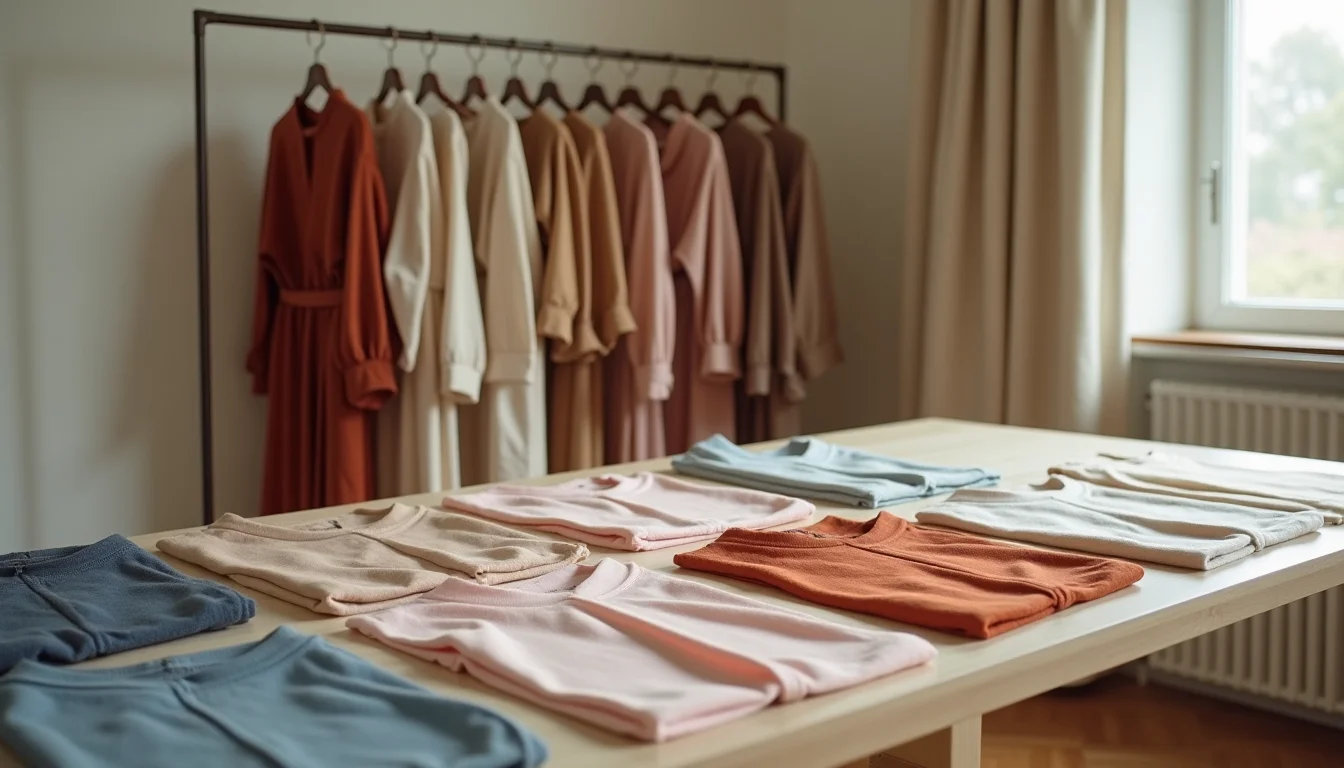
A complete photo set for a single womenswear style typically includes a front view on a white or neutral background, a back view showing construction (seam placement, closures, hem length), a detail shot of key features (zip, collar, lining, label), and a flat lay or on-hanger view for structural context.
The front view on a plain background is the one your upload team uses for the variant featured image in Shopify. Styled shots (on-model, with props) can go into the product gallery, but they don't replace the plain views the team needs for assignment and for checking construction details against the product fields they're filling in.
Shopify accepts JPEG and PNG files for product media. A square aspect ratio (1:1) keeps collection grids consistent, though portrait ratios (4:5 or 2:3) are common in womenswear to show full-length garments. Whatever ratio you choose, keep it consistent across your range (as of October 2026, per Shopify's product media documentation).
Photo requirements by womenswear product type
Different product categories need different minimum shot sets. The table below shows what an upload team typically needs to fill product fields and assign variant images without pausing.
| Product type | Minimum shots per colorway | Notes |
|---|---|---|
| Dress | Front (plain) + back + detail + length reference | Length shots show the hem at knee, mid-thigh, or ankle depending on the style |
| Top (tee, blouse, shirt) | Front (plain) + back | Add a neckline or sleeve detail shot if the construction is unusual |
| Bottom (trousers, skirt, shorts) | Front (plain) + back + waist detail | Waist construction (zip placement, waistband type) matters for the product description |
| Outerwear (coat, jacket) | Front (plain) + back + lining detail + collar detail | Lining images help fill fabric and lining fields; collar shots show a key selling feature |
| Knitwear | Front (plain) + back + texture close-up | The texture shot helps fill the material description and shows quality to buyers |
| Swimwear | Front (plain) + back, per colorway | The per-color requirement is strict here; swimwear buyers compare colors closely |
| Accessories (scarves, belts, hats with apparel) | Flat front + side + detail | Sizing context shows in a flat lay with a dimension reference |
Womenswear photo sets for upload teams: variant coverage
When a womenswear style comes in multiple colors or prints, Shopify lets you assign one image per variant. In the admin, each color variant has an image field: the upload team clicks the image icon next to the variant, selects the matching photo, and saves (as of October 2026, per Shopify's variant documentation).
What this means for your photo set is straightforward. If a dress comes in six colors, you need six separate front shots on a plain background, one per color. A single front shot of the white sample noted as "also available in navy, red, green, black, camel" doesn't give the team six assignable images. It gives them one.
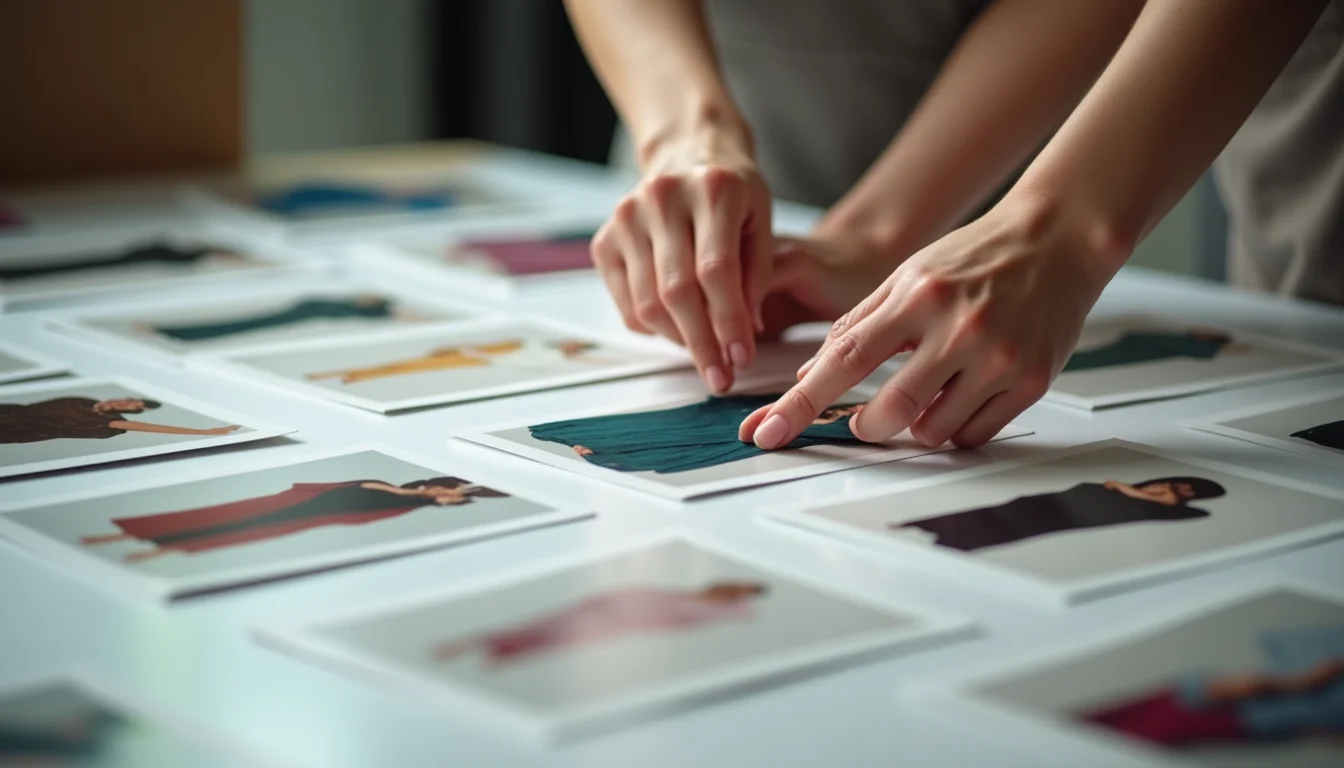
If you provide only one front shot for a multi-color style, the upload team has two options: assign the same image to all color variants, or leave variant images blank and attach the single shot to the product gallery only. Neither option is ideal for conversion, and it usually means a follow-up question or a note in the upload report. The gap almost always traces back to a brief to the photographer that didn't specify per-color plain shots.
Lay-flat and on-hanger shots work better than on-model shots for this purpose. A styled shot with a model often has the model's hands in specific positions, shadow patterns, or styling props that look inconsistent across colors if the shoot happened in multiple sessions. A flat lay in consistent lighting gives the team a clean, assignable image for every colorway.
When photo sets are incomplete
An upload team reviews the photo set before assigning images to each product. When something is missing, the job pauses until direction arrives. Common gaps in womenswear that cause pauses:
- No per-color front shot for a multi-color style (the most frequent issue)
- All shots are styled, with no plain-background views for any colorway
- Back shots exist for one colorway but not others
- Multiple styles are grouped in a single folder with no naming that links images to SKUs
- Outerwear has no lining shot, leaving the lining material field to be filled by description only
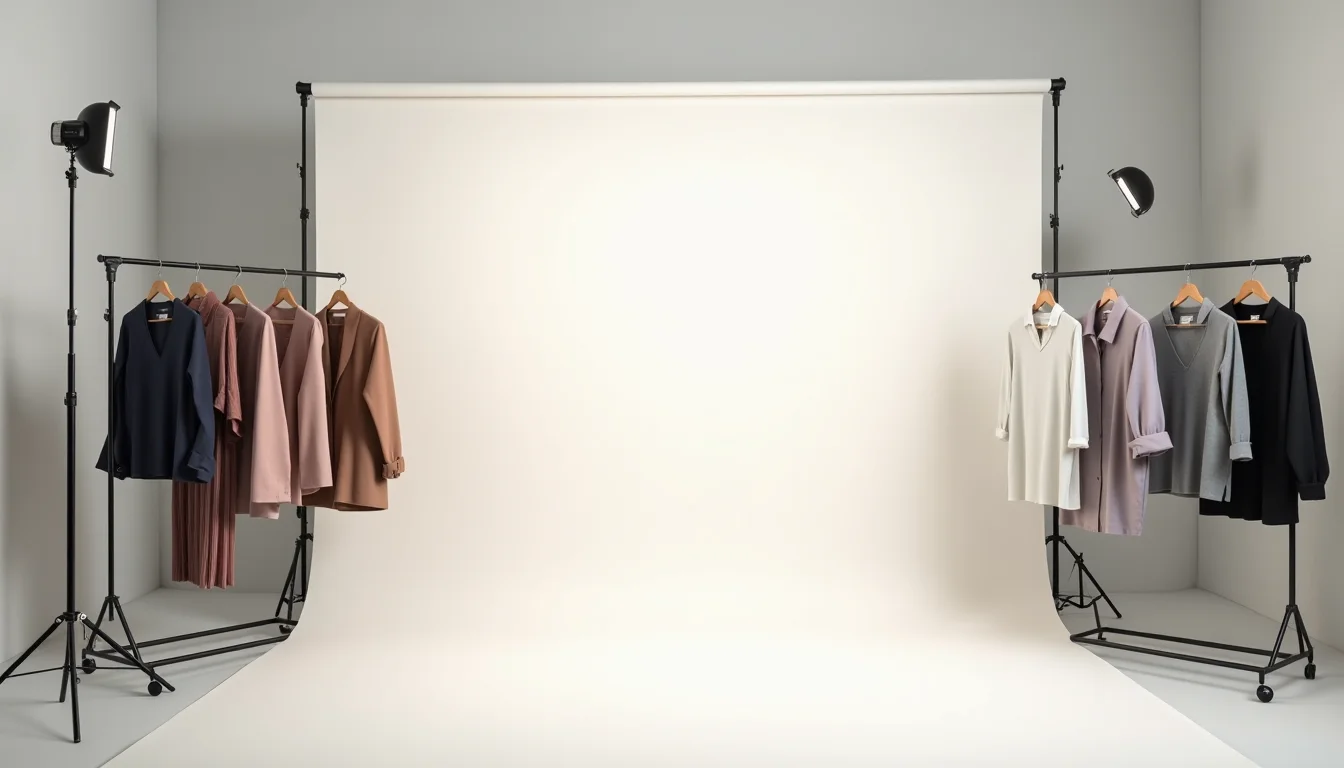
The upload team can't make editorial decisions about substitutions. If there's no front shot for a navy colorway, the team notes the gap, records what was done (often: same image as the white sample assigned as a placeholder), and flags it. You then need to provide the missing shots and request a second pass on those products. Preparing complete sets before handover avoids that cycle entirely.
For context on how image consistency affects the overall upload quality, see our guide on product image consistency standards for Shopify stores.
What to include in a womenswear photo handover
When sending photos alongside your product data, a few things make the upload team's work much faster.
Organize images by style, with one folder per style or SKU group. Within each folder, use a naming convention that links the file to the SKU and the shot type: STYLE-CODE-COLOR-VIEW.jpg works well. For example, DF001-RED-FRONT.jpg and DF001-RED-BACK.jpg leave no room for guessing.
Include a note for any colorway where the front shot is a substitute: a white sample used as a placeholder for a color that hasn't been photographed yet, or a single shot covering multiple variants. This tells the team exactly what to flag rather than making assumptions.
If you're working with an image preparation service alongside your upload job, the preparation team can handle resizing and background removal before images reach the upload team. That removes the question of aspect ratio and file size from the handover entirely.
For a broader look at what to prepare before an upload starts, see what to send your upload team before a Shopify job and our overview of product content uploads for fashion and apparel brands on Shopify.
Our fashion product upload service covers the image assignment and product data entry for womenswear ranges in full, including checking that each colorway has a complete set before the upload begins.
Frequently asked questions
Can a Shopify product have multiple images per variant?
Natively, Shopify assigns one image per variant. Your product can have a full media gallery attached, and shoppers can scroll through all images regardless of which variant is selected, but the variant-featured image (the one that changes on variant selection) is a single file per variant. If you need the gallery to filter by variant, that typically requires a theme feature or a third-party app.
What aspect ratio should womenswear product photos use?
A consistent aspect ratio across all products keeps collection grids tidy. A square (1:1) is the most common choice, but portrait ratios (4:5 or 2:3) work well for full-length womenswear garments. The ratio itself matters less than consistency: mixing portrait and square images in the same collection looks uneven in grid layouts.
Should I provide styled or plain-background shots for the upload?
Both serve different purposes. Plain-background shots (lay flat, on hanger, or ghost mannequin) are what your upload team uses for variant image assignment and for checking construction details. Styled shots (on-model, in context) go into the product gallery. If you can only provide one type for the upload phase, plain-background shots are more useful.
How do I name photo files so the upload team can match them to products?
A naming convention that includes the style code, color, and shot type removes all guesswork. For example: STYLE-CODE-COLOR-VIEW.jpg gives you DF001-RED-FRONT.jpg and DF001-RED-BACK.jpg. Avoid generic names like IMG_4521.jpg or folder structures where colors are subfolder names only, since those require the team to open each file to confirm the match.